- Home
- App Development
- Blog Details
- 12 mins read
How to Publish Your Android App on Play Store (Step by Step, 2026)
- Published on:
- Written by:
- Share:
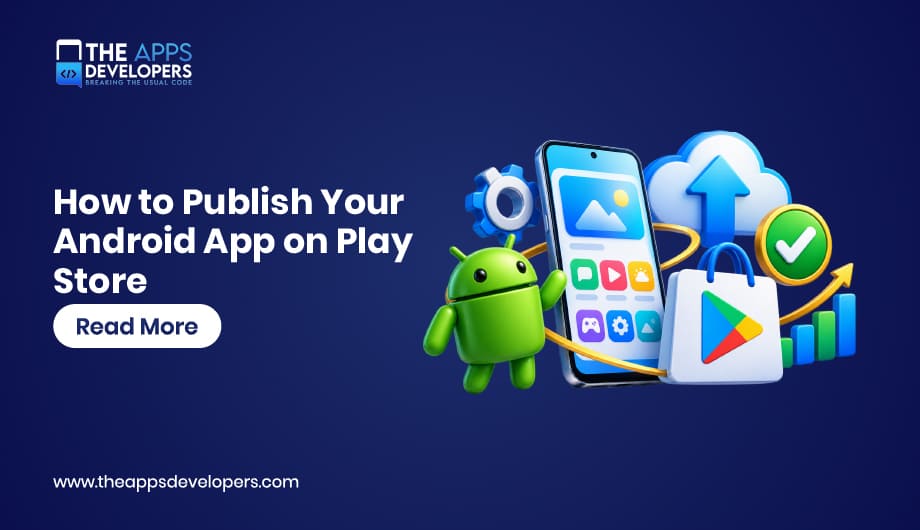
To publish an Android app on the Google Play Store, you create a developer account, build a signed Android App Bundle that targets Android 16 (API level 36), set up your listing in Play Console, fill in the App content declarations, test, and send a production release for review. If you have a newer personal account, you’ll also need 12 testers in a closed test for 14 days before Google lets you publish.
So the app works. You’ve tapped through it a hundred times, fixed the weird bug on your cousin’s Samsung, and you’re ready. Then you log into Play Console for the first time and it hits you: forms, questionnaires, graphics, testing tracks, something called a Data safety section. It’s a lot.
Honestly, none of it is hard. It’s just fiddly, and the fiddly parts are where launches stall. We’ve pushed a lot of apps through this process for clients in our Android App Development work, and the same three things trip people up almost every time: the 12-tester rule, the Data safety form, and store graphics. We’ll flag each one as we go.
What Do You Need Before Publishing on Google Play?
You need a Google Play developer account, a signed Android App Bundle, a privacy policy URL, your store graphics, and some patience for testing and review.
Get these ready first and the rest goes a lot smoother:
| What You Need | The Details |
| Developer account | $25, paid once, plus ID verification |
| Your app file | A signed Android App Bundle (.aab) |
| Target API level | Android 16 (API level 36) or newer |
| Privacy policy | A live, public web page |
| Icon | 512 x 512 px |
| Feature graphic | 1024 x 500 px |
| Screenshots | Two or more per device type |
| Testers | 12 or more, if you’re on a new personal account |
Step 1: Create a Google Play Developer Account
Head to Google Play Console and sign up with a Google account you won’t lose access to in two years (trust us on that one). There’s a one-time $25 fee. No yearly renewal.
You’ll pick between a personal account and an organization account. Personal is for individuals and needs a government ID. Organization is for registered companies and asks for a D-U-N-S number, which can take a while to sort out. If you’re a business, go with organization anyway. It saves you from the testing rule we’ll get to in Step 7.
Step 2: Prepare Your App for Release
Before building the final version, do a little housekeeping. The big one in 2026 is your target API level. Since August 31, 2026, new apps and updates have to target Android 16 (API level 36) or higher, and Google’s target API level requirements page has the full details, including exceptions for TV, Wear OS, and a few others.
While you’re in there, bump your versionCode, strip out debug logs and test logins, and remove any permissions you don’t actually use. That last part matters more than people think. Google looks hard at sensitive permissions like SMS, call logs, and background location, and asking for one without a clear reason is a quick way to get rejected.
Step 3: Build a Signed Android App Bundle (AAB)
Google Play doesn’t take plain APKs for new apps anymore. You’ll upload an Android App Bundle, and Google uses it to build smaller, device-specific downloads for your users.
In Android Studio, it’s Build, then Generate Signed Bundle / APK, then Android App Bundle. Sign it with your upload key. When you upload, opt into Play App Signing so Google holds your main signing key securely. And please back up that upload key somewhere safe. Losing it is the kind of problem nobody wants on launch week.
Step 4: Create Your App in Play Console
Click Create app. Google asks for a name, a default language, whether it’s an app or a game, and whether it’s free or paid.
Pause on that last question. A free app can never be switched to paid later. You can still add subscriptions or in-app purchases down the road, but if you were planning an upfront price, now’s the moment to decide.
Step 5: Complete the App Content Section
Here’s where most people lose an afternoon. Under Policy, then App content, Google wants a handful of declarations: your privacy policy link, login details so reviewers can get into any locked areas, whether you show ads, a content rating questionnaire, your target age group, and the Data safety form.
That Data safety form is the one to slow down on. You’re telling Google (and users) exactly what data your app collects and shares, and that includes data grabbed by third-party SDKs like analytics or ad tools. If what you declare doesn’t match what the app really does, expect trouble, either at review or later. Google’s Data safety section guide walks through every field, and it’s worth reading before you guess.
Step 6: Set Up Your Store Listing
Think of your listing as a tiny sales page. People decide in seconds.
You get 30 characters for the app name, 80 for the short description, and up to 4,000 for the full description. Add your 512 x 512 icon, a 1024 x 500 feature graphic, and at least two screenshots for each device type you support.
A few things we’ve learned: put your main keyword in the title and short description, but only where it reads naturally. Lead the description with the problem you solve, not your company history. And use real screenshots of the app. The listings that convert best usually have clean, honest visuals, which is why we often bring in our UI/UX design team for store graphics, not just the app itself.
Step 7: Test Your App (and Meet the 12-Tester Rule)
Play Console gives you three ways to test. Internal testing is for your own team, up to 100 people, and it’s the fastest to set up. Closed testing is for people you invite. Open testing lets anyone join, but you only unlock it after you have production access.
Now, the rule that catches almost everyone. If you made your personal developer account after November 13, 2023, you have to run a closed test with at least 12 testers who stay opted in for 14 days straight before you can even apply for production access. It’s all spelled out in Google’s app testing requirements. Organization accounts don’t have to do this.
Our advice? Invite 15 or 20 people, not 12. Someone always forgets, uninstalls, or opts out on day nine. Ask them to genuinely use the app, and push at least one small update during the two weeks, since Google asks about your test when you apply.
For super early builds, plenty of teams share test versions with coworkers through Firebase App Distribution before the formal closed test. If you’re still deciding how much of your backend should live on Firebase, our breakdown of Firebase vs a custom backend might help.
Step 8: Create a Production Release
Got production access? Nice. Go to Test and release, then Production, and create a new release. Upload your AAB, write short release notes, pick the countries you want, and clear any warnings Play Console throws at you.
We almost always recommend a staged rollout for a first launch. You release to a small slice of users first, watch for crashes, and expand once things look stable. If something breaks, you can pause before everyone sees it.
Step 9: Submit for Review
Hit send. Google now checks your app, listing, and declarations against its policies. How long that takes varies, and brand-new apps can sit for several days, so hold off on announcing a launch date until you see the approval email.
Rejected? It happens to good apps too. Google tells you which policy it’s about. Fix it, adjust your declarations if needed, and resubmit.
Step 10: Monitor and Update After Launch
Getting live is the start, not the finish line. Keep an eye on crash and ANR rates in Android vitals, since poor stability can drag down your visibility on Google Play. Answer reviews, especially the grumpy ones. Update your Data safety form whenever you add a new SDK. And mark your calendar, because Google raises the target API requirement every year.
If you plan to ship updates often, automate it. A CI/CD pipeline that builds, tests, and uploads for you saves hours every release, and our DevOps and cloud solutions team sets these up all the time.
How Long Does It Take to Publish an App on Google Play?
On a new personal account, plan for about three weeks or more, mostly because of the 14-day closed test. Organization accounts can be quicker once their verification clears.
Here’s roughly how it breaks down:
| Stage | How Long |
| Account setup and verification | A few days (longer for organizations) |
| Closed testing, new personal accounts | At least 14 days |
| Production access review | Up to about a week |
| App review | Several days for a new app |
How Much Does It Cost to Publish on Google Play?
Just $25, one time. That’s it for the account. If you sell the app, in-app items, or subscriptions, Google takes a service fee on those sales.
Thinking about subscriptions? Our guide on how to build a subscription-based app covers in-app billing and how to price your plans.
Common Reasons Google Play Rejects Apps
From what we see, rejections usually come down to a short list. A Data safety form that doesn’t match the app. A privacy policy link that’s broken or missing. Sensitive permissions with no obvious reason behind them. A login screen reviewers can’t get past because nobody gave them test credentials. Listings stuffed with keywords or screenshots that don’t look like the real app. And, more and more often, an outdated target API level.
Fix those before you submit and you’ll avoid most of the back-and-forth.
Can You Publish an App Privately?
Yes. If you’ve built an internal app for your staff, you can publish it privately through managed Google Play so only your organization can install it. Our enterprise mobile app development guide explains how that fits with company device management.
Conclusion
That’s the whole journey: open your account, tidy up and sign your app, set it up in Play Console, get your declarations right, build a listing people actually want to tap, test, release, and keep improving. If you’re on a new personal account, start the closed test as early as you can. Those 14 days go by faster when you’re not waiting on them.
Need a hand building or launching your Android app? Book a free consultation with The Apps Developers, and we’ll help you get from code to Google Play without the guesswork.
Frequently Asked Questions
How much does it cost to publish an app on Google Play?
It costs $25, paid once, to open a Google Play developer account. There’s no annual fee. Google does take a service fee if you sell the app or in-app purchases.
How long does Google Play review take?
Usually a few days, and sometimes longer for brand-new apps. If you’re on a new personal account, add 14 days of closed testing before you can even apply for production access.
Do I need 12 testers to publish on Google Play?
Yes, if your personal account was created after November 13, 2023. You’ll need at least 12 testers opted in to a closed test for 14 days in a row. Organization accounts skip this step.
Can I publish an APK on Google Play?
Not for new apps. Google Play requires an Android App Bundle (AAB), and it builds the APKs for each device from that bundle.
What target API level does Google Play require in 2026?
Since August 31, 2026, new apps and updates must target Android 16 (API level 36) or higher. A few app types, like Wear OS, TV, Automotive, and XR, have lower requirements.
Can I change my app from free to paid later?
No, once it’s published as free, it stays free. You can still add subscriptions or in-app purchases whenever you like.
Table of Contents

Taha Mirza
Taha Hissam Mirza is a technology writer at The Apps Developers, covering mobile app development, web development, software engineering, and emerging technologies. He explores industry trends, development strategies, and practical solutions that help businesses make informed technology decisions. Through research-driven insights and easy-to-understand articles, Taha simplifies complex technical concepts and helps startups, entrepreneurs, and enterprises understand how to build scalable, secure, and user-friendly digital products.